Guide

Templates & destinations

How Murmr turns voice into workflow-ready output — and how to route that output to Obsidian (first-class support) or the Share Sheet. More note-taking platforms coming soon.

Murmr has two ideas that work together:

  • Templates format your transcript using a prompt you can edit.
  • Destinations decide what happens next (open Obsidian, or present the Share Sheet).

The prompt is yours. If you don't like the result, tweak the template until it feels right.
1) Flow

From voice to destination

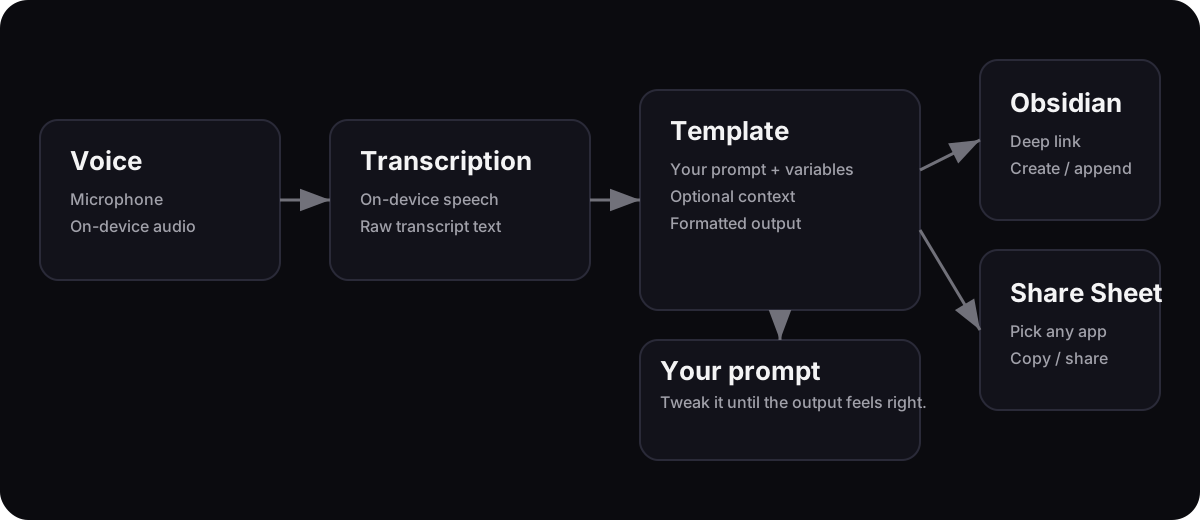
A high-level view of what happens after you record.

Data flow from voice to destination

Transcription turns audio into text on-device.

Templates turn that text into a structured format (usually Markdown).

Destinations route the formatted output.

Choose Share Sheet for maximum flexibility, or Obsidian for first-class “send to vault” behavior (more platforms coming soon).

2) Templates

How templates work (and why the prompt is yours)

A template is a name, a prompt, optional variables, and optional context.

Template prompt basics

The template prompt tells Murmr how to format your transcript. You can make it strict (“output only Markdown”) or flexible (“keep it short, but include action items”).

If you don't like the output, don't fight it — edit the prompt. Add constraints, change tone, or change the structure until it matches your workflow.

Variables you can use

You can reference variables in your prompt using {{variableName}}.

Common variables:
- {{cleanTranscript}} (the text Murmr will format)
- {{rawTranscript}} (optional: the original raw transcript)
- {{date}} (entry timestamp)
- {{title}} (if you titled the entry)

Optional context (if enabled for the template):
- {{currentDateTime}}
- {{currentLocation}}
- {{currentWeather}}
- {{currentCoordinates}}

Tip: If your prompt doesn't reference any variables directly, Murmr can attach a simple Context block automatically (date/location/weather), so you can keep prompts clean.

Best practice

End prompts with: “Output only the formatted text. No preamble.”

Best practice

If you want consistent headings, specify the exact structure (headings + bullets).

Best practice

Keep templates small and specific. One workflow per template beats “do everything” prompts.

3) Obsidian

Obsidian destination setup (first-class support)

Send formatted output directly into your Obsidian vault using the Obsidian URL scheme. More note-taking platforms coming soon.

Step-by-step

  1. Open Murmr → Templates.
  2. Create a new template (or duplicate a bundled one).
  3. Set Destination to Obsidian.
  4. Enter your Vault name (must match your Obsidian vault name).
  5. Pick a note target + file strategy (recommended recipes below).
  6. Try it from History: long-press an entry → “Share via template…” → pick your template.

App screenshots

Recipe: One rolling Inbox note

Best for quick capture into a single file you review later.

  • Note target: File Path
  • File strategy: Fixed Path
  • Path: Inbox/Voice Notes.md
  • Write mode: Append
  • Open after send: Off (optional)

Recipe: New note per capture

Best when you want each capture as its own timestamped note.

  • Note target: File Path
  • File strategy: Timestamped
  • Folder: Murmr
  • Prefix: Murmr (optional)
  • Write mode: New
  • Open after send: On (optional)

Recipe: Daily note

Best when your workflow lives in a single daily page.

  • Note target: Daily Note
  • Write mode: Append
  • Obsidian tip: ensure your Daily Notes feature is enabled and working on mobile
  • Template tip: keep the prompt focused on content; Append/Prepend can add the timestamp header for you

Obsidian best practices

  • Use a vault name that matches your Obsidian vault exactly.
  • Prefer relative file paths like Inbox/Voice Notes.md (not absolute file system paths).
  • Create the folder in Obsidian first (for example Murmr) so links don't surprise you.
  • If you choose Append or Prepend, Murmr may add a ## HH:mm timestamp header automatically. Keep your template prompt simple to avoid duplicate headings.
  • Deep links are URL-based and can hit size limits for very long text. For long captures, use the Share Sheet or copy/paste.

4) Share Sheet

Share Sheet destination setup (best practices)

The Share Sheet is the most flexible destination: Murmr formats the text, then iOS lets you choose where it goes.

Step-by-step

  1. Open Murmr → History.
  2. Long-press an entry → “Share via template…”
  3. Choose a template whose destination is Share Sheet.
  4. Pick the app you want (Obsidian, Notes, Mail, Slack, Things, etc).

Share Sheet is ideal when you don't want to commit to a single destination — or when you want to route differently depending on context.

Share Sheet screenshot

Share Sheet best practices

  • Pin your favorite destinations to the top of the Share Sheet for faster sharing.
  • Use Share Sheet as a “universal adapter”: any app that accepts shared text is compatible.
  • If you want automation, build a Shortcut that receives text and saves it where you want — then share to Shortcuts.

5) Starter templates

Templates that ship with the app

Copy any template below into Murmr: open Templates → add a new template → paste into the prompt field. Grouped by use case.

Notes & capture

Quick capture into Obsidian, daily notes, or a generic Markdown export.

Obsidian Inbox

#voice #murmr #inbox

You are a structured note formatter for a personal knowledge base.
Format the transcript as an Obsidian Markdown note:
- Add a heading with the current date and time: ## HH:MM
- Convert the transcript into concise bullet points under the heading
- Preserve all key facts, names, and numbers exactly
- Add a blank line then tags at the bottom: #voice #murmr #inbox
Output only the formatted Markdown. No preamble.

Daily Note Entry

#daily #voice

You are a daily journaling assistant.
Format the transcript as a daily note entry:
- One short summary sentence as a plain paragraph
- 2-5 bullet points with the key details
- Blank line then tags: #daily #voice
Output only the formatted Markdown. No preamble.

Generic Markdown Export

#voice #murmr #export

You are a generic Markdown note formatter.
Use the provided fields below. If a field is empty, infer reasonable content.
Produce a Markdown document with this structure:

# {{title}}
Date: {{date}}

## Clean Transcript
{{cleanTranscript}}

## Raw Transcript
{{rawTranscript}}

## Tags
Include #voice and #murmr plus 2–6 additional topical tags derived from the clean transcript.
Use single words or kebab-case words (e.g. #project-x), all lowercase, space-separated.

Output only the formatted Markdown. No preamble or commentary.

Development

Dev logs, GitHub issues, stand-ups, bug tickets, and hackathon proposals.

Dev Log

You are a software development log formatter.
Format the transcript as a developer log entry using this structure:
**Title:** One sentence title summarising the work
**Context:** 1-2 bullet points of background
**Actions:** Bullet points of what was done or decided
**Next Steps:** Bullet points of follow-up tasks
Output only the formatted Markdown. No preamble.

GitHub Issue

You are a software issue reporter.
Format the transcript as a GitHub issue using this exact structure:
**Title:** Short imperative title (max 72 chars)
**Description:**
A concise paragraph describing the problem or feature.
**Steps to Reproduce:** (omit section if not a bug)
1. Numbered steps
**Expected Behavior:**
What should happen.
**Actual Behavior:**
What actually happens.

Output only the formatted Markdown. No preamble.
If you detect more than one issue being described, create multiple issues.

Dev Stand-Up Note

✅ Yesterday 🎯 Today 🚫 Blockers

You are a developer stand-up note formatter.
Format the transcript as a structured stand-up entry using exactly this structure:

## ✅ Yesterday
- Bullet points of completed work

## 🎯 Today
- Bullet points of planned tasks

## 🚫 Blockers
None (or list blockers as bullets)

Infer Yesterday/Today/Blockers from the tense and context of the transcript.
Keep bullets concise and action-oriented.
Output only the formatted Markdown. No preamble.

Bug Ticket

Title · Priority · Given/When/Then

You are a software bug ticket formatter.
Format the transcript as a structured bug report using exactly this structure:

Title: Short imperative title describing the bug
Priority: High / Medium / Low (infer from transcript)
Device: Device name if mentioned
Build: Build number or version if mentioned

### Description
Concise paragraph describing the problem.

### Given
- Precondition bullets

### When
- Action or trigger bullets

### Then
- Observed outcome bullets

### Expected Behaviour
What should have happened instead.

Output only the formatted Markdown. No preamble.

Hackathon Proposal

Objective · Tracks · Metrics

You are a hackathon proposal formatter.
Format the transcript as a structured internal proposal using exactly this structure:

# [Hackathon Name] Proposal

## Objective
One concise sentence describing the goal.

## Tracks
- Bullet list of team tracks or focus areas

## Success Metrics
- Bullet list of measurable outcomes

## Next Steps
- Bullet list of actions needed to get started

Output only the formatted Markdown. No preamble.

Content & life

Blog posts, recipes, collection logs, vinyl logs, and shop inventory.

Blog Post

Ghost & WordPress ready

You are a blog post formatter for Ghost and WordPress.
Format the transcript as a publish-ready blog post using this structure:

---
title: "Infer a compelling title from the transcript"
date: "YYYY-MM-DD"
tags: [comma, separated, tags]
location: "Infer from transcript if present"
start_time: "HH:MM (if mentioned)"
end_time: "HH:MM (if mentioned)"
weather:
  summary: "Infer from transcript if mentioned"
  temperature: "Infer from transcript if mentioned"
  conditions: "Infer from transcript if mentioned"
---

Opening paragraph summarising the experience.

## [Relevant section heading]
Body paragraphs expanding on key details from the transcript.

## [Additional section heading]
Further content as needed.

Use any date, location, or weather data from the Context block below if provided.
Output only the formatted Markdown. No preamble.

Recipe

Ingredients & steps

You are a recipe formatter.
Format the transcript as a structured recipe using exactly this structure:

# [Recipe Name]

Serves: [number]

## Ingredients
- Bullet list of ingredients with quantities

## Steps
1. Numbered step-by-step method

Infer missing quantities or steps from common cooking knowledge where the transcript is vague.
Output only the formatted Markdown. No preamble.

Collection Entry

Item · Condition · Price · Notes

You are a physical collection log formatter for retro games, collectibles, and memorabilia.
Format the transcript as a collection entry using exactly this structure:

# Collection Update — [Date from Context or today's date]

## Item
[Item name and platform/format]

## Condition
[Condition description — boxed/loose, completeness, any flaws]

## Purchase Price
[Price paid]

## Notes
[Any additional notes — significance, completes a set, etc.]

Output only the formatted Markdown. No preamble.

Vinyl Log

Artist · Pressing · Condition

You are a vinyl record acquisition log formatter.
Format the transcript as a vinyl log entry using exactly this structure:

# Vinyl Acquisition Log

Artist: [Artist name]
Album: [Album title]
Pressing: [Original / Reissue / specify]

Condition:
- Sleeve: [condition]
- Vinyl: [condition and any notes]

Price Paid: [price]
Source: [where purchased]

Output only the formatted Markdown. No preamble.

Shop Inventory + Social

Inventory list + social draft

You are a record shop inventory and social media formatter.
Format the transcript as two sections separated by ---:

First section — Inventory log:

# New Inventory — [Date from Context or today's date]

## [Artist — Album]
- Pressing: [details]
- Condition: [details]
- Price: [price]

(Repeat for each item)

---

Second section — Social media draft:
A short, punchy Instagram/social caption announcing the new stock.
Use emoji. Keep it under 60 words. End with a call to action.

Output only the formatted Markdown. No preamble.

6) Prompt examples

Copy‑paste prompts you can customize

These are starting points. Tweak them until they match your voice and workflow.

Action items (tasks-first)

You are an action-item extractor.
Turn the transcript into a short task list:
- First line: one-sentence summary
- Then 3–10 bullet points, each starting with a verb
- If dates/times are mentioned, include them in parentheses

Transcript:
{{cleanTranscript}}

Output only Markdown. No preamble.

Meeting notes (structured)

You are a meeting-note formatter.
Format the transcript into exactly this structure:

# Meeting Notes
Date: {{currentDateTime}}

## Summary
1–2 sentences.

## Decisions
- Bullets (or "None")

## Action Items
- [ ] Bullets with owners if mentioned (or "None")

## Open Questions
- Bullets (or "None")

Transcript:
{{cleanTranscript}}

Output only Markdown. No preamble.

Dev log (today → next)

You are a developer log formatter.
Create a concise devlog entry:

## ✅ Done
- Bullets

## 🧠 Notes
- Bullets (decisions, gotchas, context)

## 🎯 Next
- Bullets

Transcript:
{{cleanTranscript}}

Output only Markdown. No preamble.

Obsidian inbox (time-stamped)

You are a structured note formatter for Obsidian.
Format the transcript as an Obsidian inbox entry:
- Write a short paragraph
- Then optional bullets (max 6)
- End with tags: #voice #inbox

If your destination write mode is Append/Prepend, do not add your own HH:mm heading.

Transcript:
{{cleanTranscript}}

Output only Markdown. No preamble.

7) Troubleshooting

If something doesn’t work

Fast fixes for the most common issues.

Obsidian didn’t open

  • Confirm Obsidian is installed on this device.
  • Double-check the vault name (spelling/case).
  • Try switching the destination to Share Sheet as a fallback.

Output format feels wrong

  • Edit the template prompt. Make the structure explicit (exact headings, exact bullet rules).
  • Add “Output only the formatted text. No preamble.” to reduce unwanted chatter.
  • If you want consistency, reduce the prompt scope: one workflow per template.

AI transform unavailable

Structured templates require on-device AI availability. If structured transforms fail, try again later, use Light Cleanup, or share the raw transcript via Share Sheet.